Who can do what? Understanding family roles in FamilyFeed
Admins manage. Members participate. Everyone stays in sync, with the right level of control.
Not everyone should have the same control in a family app. Whether you are protecting settings from accidental changes or simply keeping the interface focused for everyone, clear roles are essential.
FamilyFeed makes permissions visible and simple, ensuring your family coordination remains safe and organized.
Admin
-
Manage family members -
Assign roles -
Full control of structure
Member (Registered)
-
View and update shared data -
Add tasks and appointments -
Cannot manage permissions
Member (Non-Registered)
-
Represented in family -
Assigned to tasks -
No login required (pets or kids)
Admin vs Non-Admin, what you see is what you can do
The interface adapts to your role, making it clear what actions you can take.
Admin View
Owner Controls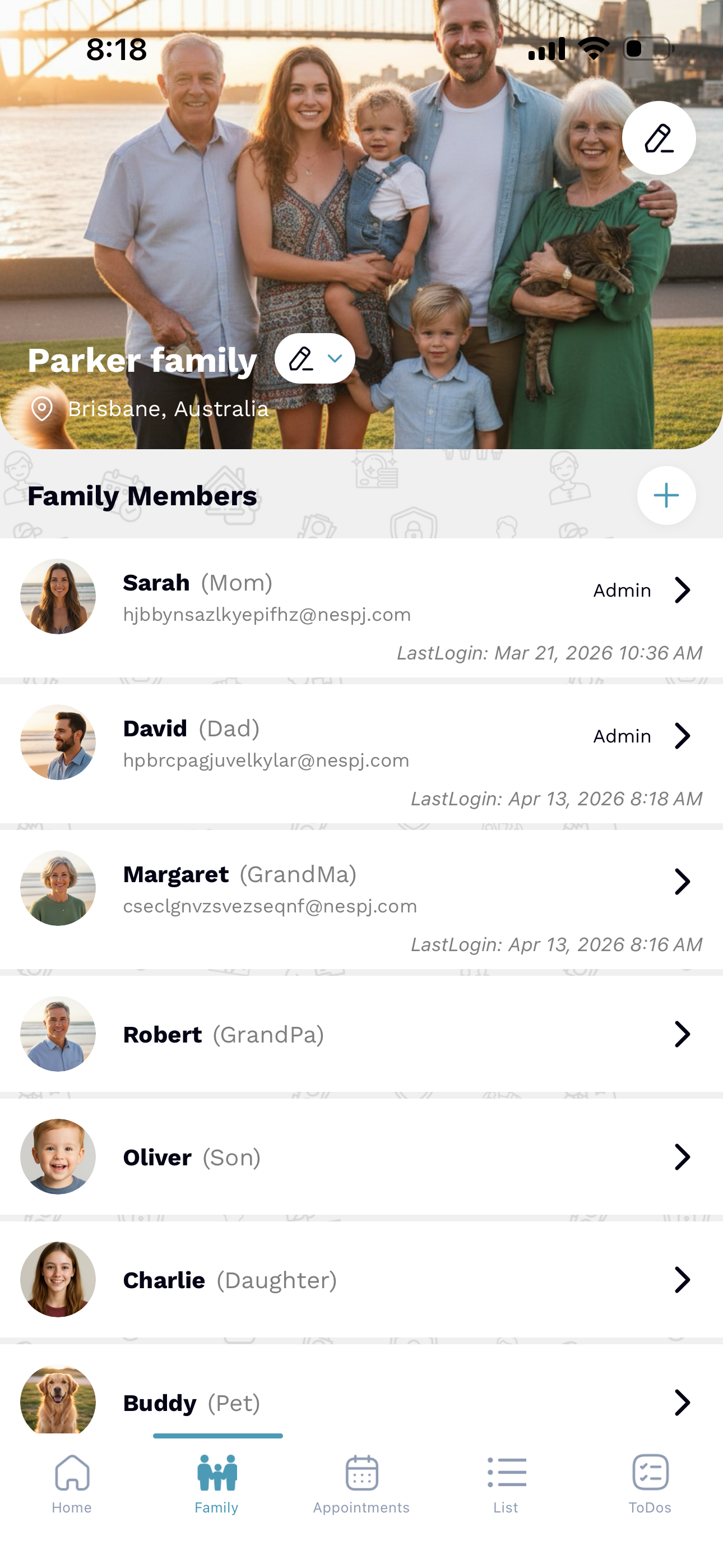
Admins see edit icons, the add member button, and explicit role labels. These controls allow family structure to be managed directly from the hub.
Member View
Standard User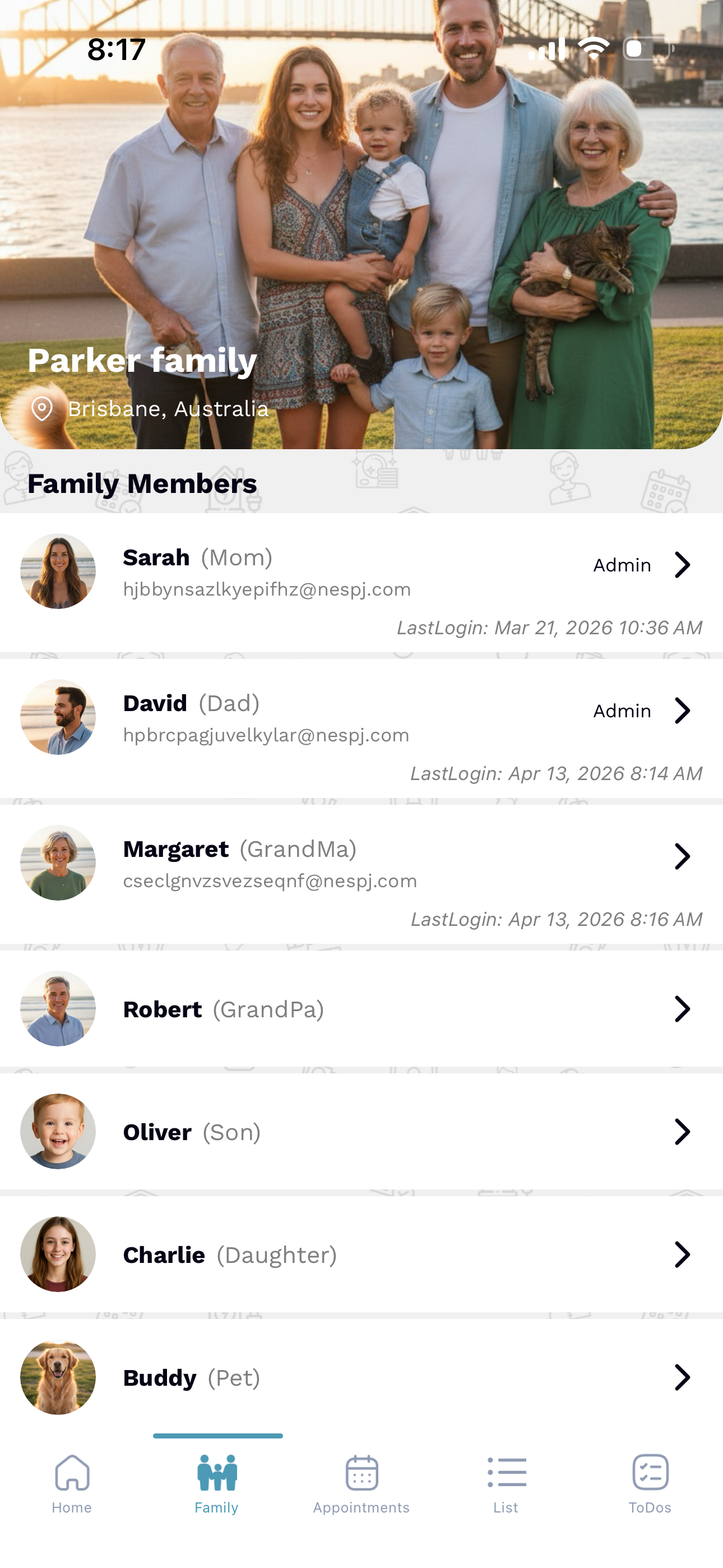
For non-admins, management icons are hidden to prevent clutter and accidental changes. The focus stays on viewing family members and participating in shared activities.
"FamilyFeed hides actions you don't have permission for, no confusion, no accidental changes."
Permission Rules
Admins can promote members to Admin
Non-admins cannot change roles
Only Admins manage family structure
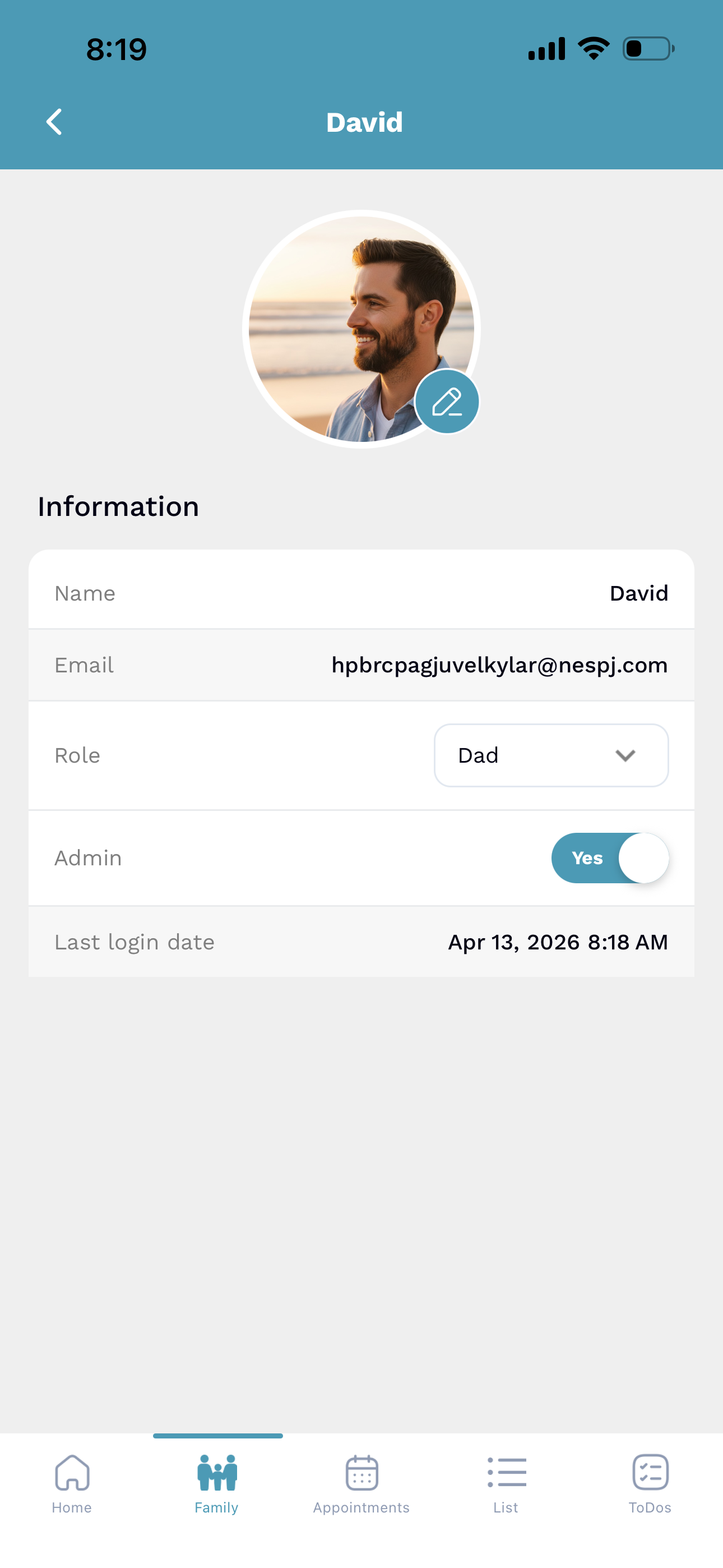
Admin Profile View
Admins like David have access to sensitive toggles. From their own profile or while managing others, they can explicitly grant Admin rights to keep the family running smoothly.
Full access to email, role selection, and Admin toggles.
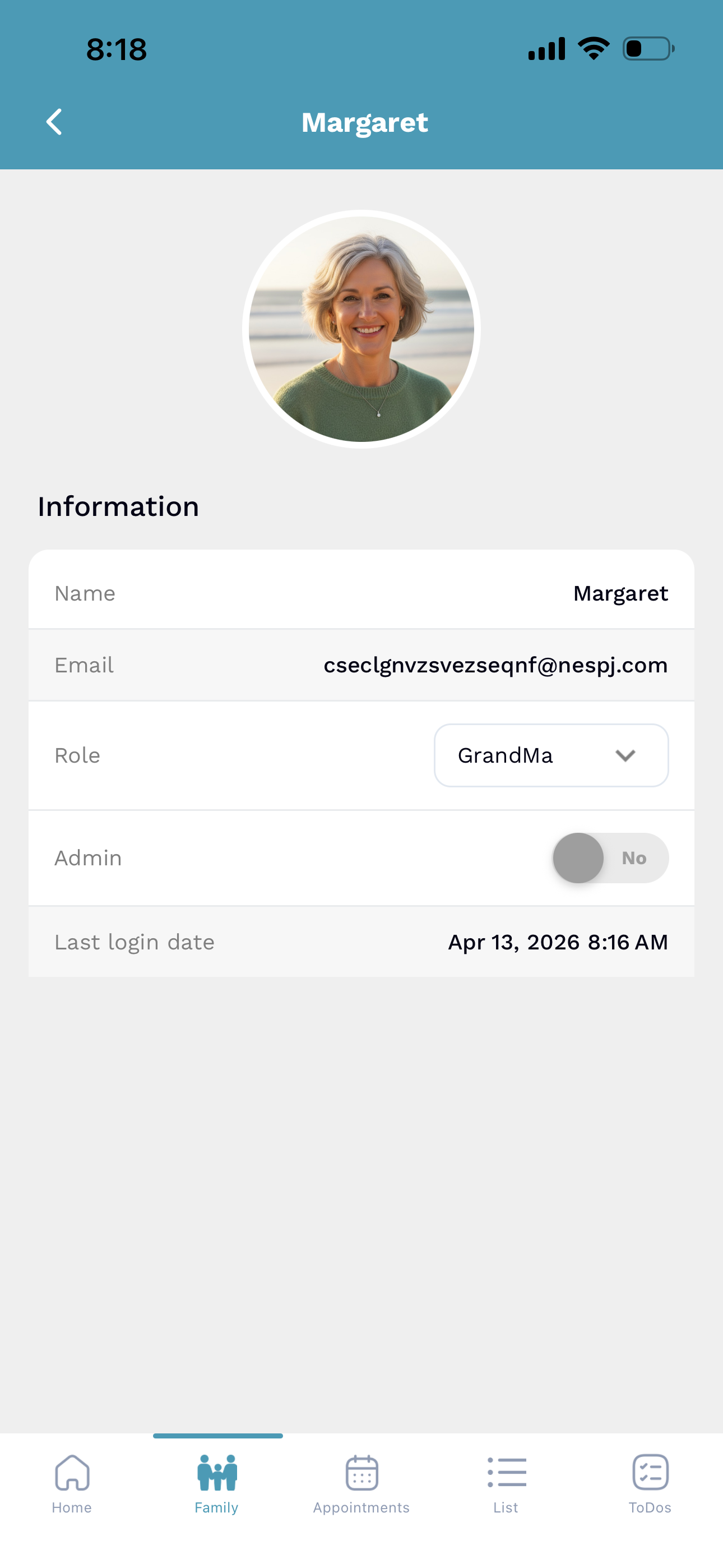
Registered Member Profile
Registered members like Margaret can view their own details and login history. However, they cannot modify the Admin status toggle, ensuring structural security.
View-only role management and restricted toggle access.
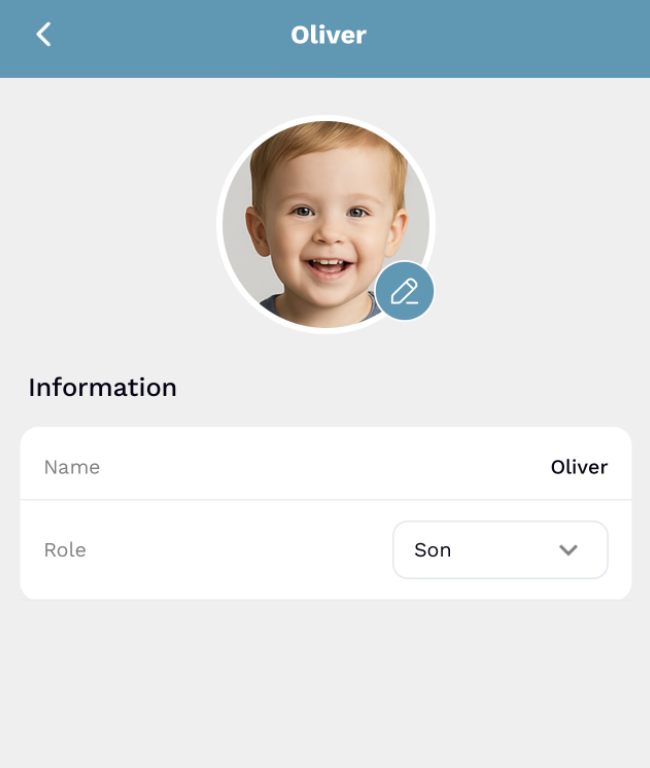
Simplified (Non-Registered) Profiles
For younger members or pets, FamilyFeed provides a simplified profile. Since no login is required, details like email and Admin toggles are hidden for simplicity.
Clean interface focused purely on identification and role assignment.
Real-Life Example
David
Admin
Margaret
Member
David (Admin) can make Margaret an Admin anytime.
Margaret (Member) cannot promote anyone or change family settings.
Why this design works
No confusion
The UI matches permissions perfectly. If you cannot do it, you do not see the button.
Safe for families
Prevents mistakes and keeps critical family settings protected from accidental changes.
Easy onboarding
Users do not need training to know their limits. The app is naturally intuitive.